Messy PDF Statements: How Finance Teams Fix Data Errors
Validate converted PDF statements before import: tie opening/closing balances, fix broken rows, normalize dates and signs.
Last updated 2026-06-26
A PDF bank statement can look fine and still break your books. One flipped sign, one dropped row, or one bad date can push transactions into the wrong period, turn a payment into a deposit, or throw off reconciliation by the exact amount of the error - or 2x that amount in sign-flip cases.
Here’s the short version: when I work with PDF statement data, I treat the file as suspect until it ties out. PDFs don’t store data as clean rows and columns, so exports to CSV or Excel often create the same set of problems:
- broken rows from wrapped descriptions
- OCR mistakes like
0vs.O - date mix-ups such as
03/04/2026 - debit/credit sign errors
- duplicate or missing entries
- format issues like
1,25,000.50from Indian statements
The fix is simple in concept:
-
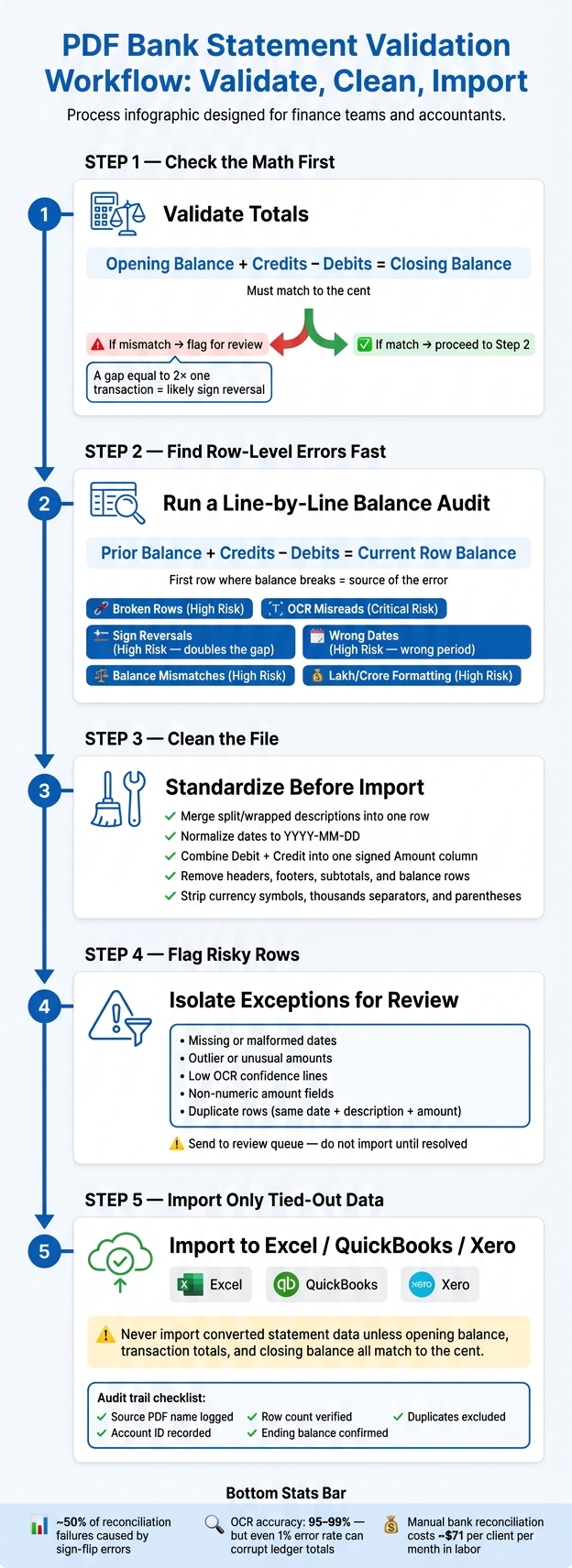
Check the math first
Opening Balance + Credits - Debits = Closing Balance -
Find row-level errors fast
Use a running balance to spot the first line where the file stops matching. -
Clean the file before import
Merge split descriptions, standardize dates, remove summary rows, and convert debit/credit columns into one signed amount field. -
Flag risky rows
Pull out bad dates, odd amounts, text-formatted numbers, and low-confidence OCR lines for review. -
Import only tied-out data
That helps keep bad rows out of Excel, QuickBooks, and Xero.
A few numbers stand out from the article: sign-flip errors account for about 50% of reconciliation failures, OCR may still miss key characters even at 95%–99% character accuracy, and manual bank reconciliation can cost about $71 per client per month in labor.
If I had to reduce the whole process to one rule, it would be this: <u>never import converted statement data unless the opening balance, transaction totals, and closing balance all match to the cent</u>.
| Problem | What it looks like | What I check |
|---|---|---|
| Broken rows | Blank date or amount on part of a split transaction | Running balance and row count |
| Sign reversal | Withdrawal imported as positive | Balance gap, often 2x one amount |
| Wrong date | 03/04/2026 read the wrong way |
Date standardization and period review |
| OCR error | Wrong number or text value | Non-numeric flags and exception review |
| Missing/duplicate row | Totals do not match statement | Opening/closing balance test |
That’s the core idea of the article: validate first, clean second, import last.
PDF Bank Statement Validation Workflow: Validate, Clean, Import
STOP Wasting Hours On Bank Statements - This Free AI Excel Tool Does It All
sbb-itb-2afa642
The most common data errors in messy statement PDFs
Most extraction mistakes show up in the same few ways. If you can spot them in a spreadsheet before the file hits your accounting software, you can stop bad data before it turns into a bookkeeping mess.
Broken rows, split descriptions, and OCR misreads
Long transaction descriptions often wrap onto a second line in a PDF. That’s where things go sideways. A weak parser may read that second line as a new transaction with no date or amount. The result: an extra row in Excel, broken row counts, and totals that no longer line up. [8][3]
OCR tools also mix up characters that look alike, such as 8 and 3, or 0 and O. A row can look fine at a glance and still import the wrong value. [6] There’s also a sneaky character issue: some PDFs use a Unicode minus sign (−) instead of a standard hyphen (-). When that happens, the amount may come into Excel as text instead of a number. [9]
Wrong dates, sign reversals, and balance mismatches
Date errors are easy to miss because the field still looks right. If a statement uses DD/MM/YYYY, U.S. software may read it as MM/DD/YYYY. So 03/04/2026 quietly turns into March 4 instead of April 3. [7] That one transaction can end up in the wrong reporting period.
Sign reversals are worse. If a parser guesses debit and credit based on column placement instead of clear markers, it can flip a withdrawal into a positive number. One sign error doesn’t just create a small problem. It doubles the reconciliation gap. [2]
Balance mismatches usually mean one of two things: a row was dropped, or an entry was duplicated. If the extracted data doesn’t match the printed closing balance, the file is not ready for import. Opening balance plus net movement should equal closing balance. [9][11]
Cross-border formatting errors including Indian lakh and crore values
U.S. finance teams working with Indian statements run into another formatting issue: lakh and crore digit grouping. Indian statements use formats like 1,25,000.50 instead of the U.S. style 125,000.50. [6][10] If a parser only expects U.S. number formatting, it may misread the amount or place the decimal in the wrong spot.
Here’s a quick checklist for the highest-risk issues.
| Error Type | Where It Starts | Appearance in Excel/CSV | Reconciliation Risk | Auto-Flagged? |
|---|---|---|---|---|
| Broken Rows | Page breaks or wrapped text | Data split across two rows; blank date/amount fields | High - missing or duplicated data | Yes (via balance check) |
| OCR Misreads | Visual similarity (8 vs. 3, 0 vs. O) | Incorrect characters in dates, names, or amounts | Critical - incorrect ledger totals | Partial (confidence flags) |
| Sign Reversal | Layout-based parsing logic | Withdrawals shown as positive numbers | High - doubles the error impact | Yes (via balance check) |
| Wrong Dates | Regional format mismatch (DD/MM vs. MM/DD) | 03/04/2026 read as March 4 instead of April 3 | High - transactions in the wrong period | Needs logic check |
| Balance Mismatch | Dropped rows or duplicated entries | Sum of rows ≠ closing balance | High - indicates missing or extra data | Yes (opening + net check) |
| Lakh/Crore Formatting | Regional digit grouping separators | 1,25,000.50 read incorrectly or rejected as text | High - amount distortion | Yes (non-numeric flags) |
Once you find these errors, the next job is to validate totals and fix the file before import.
How finance teams check and fix statement data
Use opening balance, debits, credits, and closing balance to check accuracy
Once the usual PDF issues are found, the next job is simple: prove the statement ties out.
The main check is:
Opening Balance + Total Credits − Total Debits = Closing Balance
If that math works to the cent, the extracted data is usually complete and accurate [13][2]. When it doesn’t, the size of the gap often points to the problem. A difference equal to twice one transaction amount often means a sign reversal. A difference equal to one transaction amount often means a missing row.
A running balance audit helps teams find the exact break. Recalculate the balance line by line using:
Prior Balance + Credits − Debits = Current Row Balance
This shows the first row where the data stops tying out. That row is usually where the issue starts, not just where someone noticed it. Finance teams should not import converted bank data until the opening and closing balances match.
Standard cleanup steps in Excel or CSV before import
After the statement passes the balance check, cleanup shifts to format and import rules.
In Excel or CSV, teams usually:
- Merge wrapped descriptions into a single row
- Normalize dates to
YYYY-MM-DD - Combine Debit and Credit into one signed Amount column with
=IF(Credit<>"", Credit, -Debit) - Remove headers, subtotals, and balance rows before import [5][8][12][14]
For duplicate checks, this formula is a common pick:
=COUNTIFS(DateRange, Date, DescRange, Desc, AmtRange, Amt)>1
It flags rows where the date, description, and amount all repeat [13].
Flag low-confidence rows before they reach the books
Instead of reviewing every single line again, teams usually flag the risky rows and move on.
That includes missing or malformed dates, outlier amounts, and rows with low OCR confidence [12][1]. Pulling those into a separate review queue keeps the accountant focused on exceptions instead of wasting time on rows that already look clean.
Once the file is cleaned, teams can pick the fastest way to catch duplicates, broken rows, and sign errors.
| Check Type | Manual Spreadsheet Review | Formula-Based Checks | Automated Balance Check |
|---|---|---|---|
| Speed | Slow (10–15 mins/statement) | Moderate (2–5 mins) | Instant (<1 sec) |
| Accuracy | Low (human error risk) | High (math-based) | Very High (balance-checked) |
| Broken Rows | Manually identified | Hard to detect via formula | Automatically flagged via balance break |
| Sign Reversals | Often missed visually | Detected if total doesn't tie | Identified via "Diff/2" logic |
| Duplicates | Hard to spot in long lists | Detected via COUNTIFS |
Automatically deduplicated |
| Scalability | Poor | Moderate | High (batch processing) |
When the data ties out, the file is ready for standardization before import.
Building import-ready files for Excel, QuickBooks, Xero, and other formats

What an import-ready statement file should contain
Once the balances tie out, the next step is to reshape the file for import. The goal isn't just a neat-looking spreadsheet. The file has to match the import schema.
At a minimum, every import-ready file needs Date, Description (or Payee), and Amount. For audit trail and reconciliation, it can also include Reference No., Balance, and Category [16][14][17].
Most accounting systems work best with a single signed Amount column. Deposits should be positive. Withdrawals should be negative. In Xero, that often means using headers like *Date and *Amount and keeping the date format consistent to avoid import failures [16][14].
The table below shows how raw extracted fields turn into import-ready output:
| Raw Extracted Field | Cleaned Field | Import-Ready Column |
|---|---|---|
01/15 (missing year) |
01/15/2026 |
Date (MM/DD/YYYY) |
AMAZON MKTPLACE... / WA 98101 (split rows) |
AMAZON MKTPLACE WA 98101 |
Description |
Debit: 45.00 / Credit: [blank] |
-45.00 |
Amount |
(1,200.50) (parentheses format) |
-1200.50 |
Amount |
Non-transactional rows - page headers, footers, subtotal lines, bank branding, and balance-forward lines - should be removed before import [4][16].
How messy statement output becomes import-ready
After cleanup, the next job is standardizing the format. The cleaned data is shaped for Excel, CSV, QuickBooks, and Xero with standard columns such as Date, Description, Reference No., Debit, Credit, Balance, and Category. Dates are normalized to YYYY-MM-DD, and amounts are stripped of currency symbols, thousands separators, and parentheses used for negatives [9][6].
Bank-specific parsing helps keep columns aligned and descriptions intact across the many layout differences banks use. Multi-line descriptions are merged into a single row, and reference IDs - including UPI, NEFT, and IMPS IDs when present - are kept instead of removed [5][9][18].
If the statement no longer ties out, flag it before import.
Handling statement volume without adding reconciliation risk
Batch processing, deduplication, and audit traceability
Once a statement is clean enough to import, the next job is handling a lot of files without letting old mistakes creep back in.
Processing one statement at a time can work for a single account. But that approach falls apart fast when a finance team is dealing with multiple clients, several bank accounts, or a full year of past records. At that point, batch processing needs to keep deduplication and balance checks in place.
A statement-specific batch workflow treats a multi-page statement as one continuous dataset. It removes repeated headers, footers, and subtotal rows that often become duplicate entries in manual or template-based workflows [4][17]. That keeps the merged output cleaner and cuts down on the copy-paste mistakes that spreadsheet workflows often cause.
Traceability matters just as much as getting the numbers right. Every converted file should keep:
- source PDF name
- account ID
- row count
- excluded duplicates
- ending balance [15]
That gives reviewers a clear audit trail back to the original document without digging through folders or piecing the workflow together by hand.
That audit trail also needs to live inside a secure workflow, not a manual folder process.
Privacy and security controls for financial documents
Bank statements hold highly sensitive information, so security has to be built into the workflow from the start. The practical minimum is encrypted transfer plus in-memory processing, so raw statement data does not sit in readable files [8][17]. After extraction, source files should be deleted automatically [17].
Conclusion: Cleaner statement data leads to faster reconciliation and fewer posting errors
The fix is a structured workflow: validate balances first, clean the data in a dedicated review stage, and import only files that tie out.
At scale, the win is not just faster conversion. It is clean, traceable data that ties out before import.
FAQs
How do I know a PDF statement is safe to import?
A PDF statement is safe to import only after it has been cleaned into a reviewable transaction table and validated.
Before you import it, check a few basic things:
- Each transaction should appear on one row
- Dates and debit/credit signs should be consistent
- Non-transaction data should be removed
- The transactions should tie to the statement’s ending balance
If anything looks off, or the balance doesn’t match, do not import.
What usually causes bank statement data to break in Excel or CSV?
Bank statement data often falls apart for one simple reason: PDFs are built for people to read, not for systems to pull clean rows of data from.
That mismatch causes a bunch of messy problems. A page break can split one transaction into two pieces. Headers and footers can get dragged in and treated like line items. And when the file is a scanned PDF, the text can come out garbled or the columns can shift out of place.
You’ll also run into cases where multi-line descriptions get chopped up, dates or amounts get read the wrong way, and the tool flips debit and credit signs. Some tools even mistake opening or closing balances for actual transactions, which can throw off the entire dataset.
How can I catch sign errors and missing rows fast?
Check the math first: opening balance + all transactions should equal closing balance.
If it doesn’t, the gap is your first clue. In many cases, a missing row matches a specific transaction amount shown on the PDF. That gives you a simple place to start.
If the difference is about half the balance, you may be dealing with a broad sign error where debits and credits were swapped. It also helps to confirm that each transaction has its own row, with deposits as positive numbers and withdrawals as negative numbers.
Loading interactive converter… Try ClearlyLedger free