PDF to CSV Bank Statement: 5 Methods Compared
Compare five ways to convert bank PDFs into clean, import-ready CSVs — from manual entry to OCR and bank-specific converters.
Last updated 2026-07-15
If you want the short answer: the right method depends on file type, transaction count, and how much cleanup you can handle. A text-based PDF can often be copied or extracted. A scanned PDF needs OCR first. And if you need a CSV that can go into accounting software, bank-specific tools usually leave you with less manual fixing.
Here’s the full takeaway in plain English:
- I’d use manual entry only for a very short statement
- I’d use copy and paste only for simple text-based PDFs
- I’d use generic PDF extractors for basic digital tables
- I’d use OCR tools for scanned or image-only statements
- I’d use bank-specific converters for repeat bookkeeping and imports
A few things matter most:
- Accuracy: broken rows, sign flips, and missed lines are common
- Speed: manual work can take the longest by far
- Cleanup: headers, subtotals, wrapped text, and date fixes add time
- Import readiness: accounting imports usually need clean columns and balance checks
One rule matters first: check whether the PDF has selectable text. If it doesn’t, it’s scanned, and OCR is the starting point. Also, for U.S. imports, keep amounts in $1,234.56 format and dates in MM/DD/YYYY.
PDF to CSV Converter Bank Statement or Credit Card
sbb-itb-2afa642
Quick Comparison
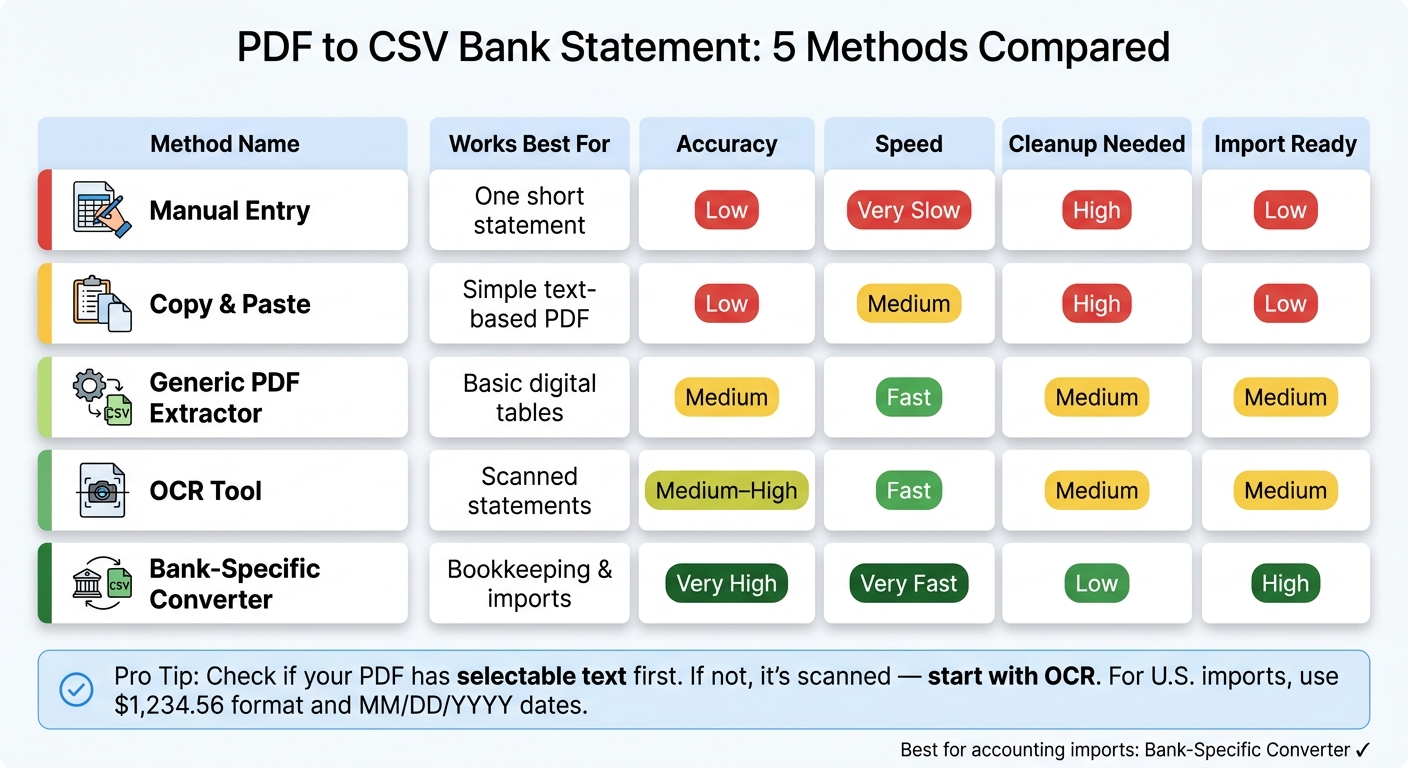
PDF to CSV Bank Statement: 5 Methods Compared at a Glance
| Method | Works Best For | Accuracy | Speed | Cleanup | Import Ready |
|---|---|---|---|---|---|
| Manual Entry | One short statement | Low | Very slow | High | Low |
| Copy & Paste | Simple text-based PDF | Low | Medium | High | Low |
| Generic PDF Extractor | Basic digital tables | Medium | Fast | Medium | Medium |
| OCR Tool | Scanned statements | Medium to High | Fast | Medium | Medium |
| Bank-Specific Converter | Bookkeeping and imports | Very high | Very fast | Low | High |
Bottom line: if you only need to review a small statement, low-cost manual methods can work. If you need clean CSV output at scale, a bank-specific converter is usually the safer path.
1. Manual data entry
Manual entry is exactly what it sounds like: open the PDF and type each transaction into a spreadsheet, one row at a time. Each row needs Date, Description, Debit, Credit, and Balance.
That sounds simple until the small details start stacking up. Many U.S. bank statements show only the month and day on each transaction line, usually in MM/DD format, while the year appears only in the statement header. So you have to carry that year down yourself. You also need to merge wrapped descriptions and make sure debits and credits land in the right columns. [1]
A balance check helps catch mistakes: opening balance + total credits − total debits = closing balance. If the numbers don’t line up, something was missed, entered twice, or placed in the wrong spot. The first and last rows on each page deserve extra attention because that’s where duplicates and omissions often sneak in. [1]
For a very short file, this can work. But once you’re dealing with multi-page statements, older archives, or month-end work across several client accounts, it starts to bog down fast. The cleanup takes time, the process is tough to repeat the same way every time, and the final CSV still needs a review before it’s ready for import into accounting software. [1]
If the PDF is text-based, the next method cuts out most of that typing. For those who prefer spreadsheets, you can also follow a guide to converting PDF bank statements to Excel to streamline the process.
2. Copy and paste into spreadsheets
Compared with manual entry, copy-paste is faster for simple, text-based statements. But that only holds when the PDF layout is clean and plain. [1]
Once the layout gets messy, things can go sideways fast. Wrapped descriptions and shifted columns may split into extra rows and push amount columns out of place. Running balances can also make copied columns harder to line up. And those mistakes can pass straight into the CSV unchanged. [1]
Page breaks create their own headaches too. They can duplicate headers or leave out rows. [1]
Cleanup typically involves: removing repeated headers, deleting subtotal rows, fixing sign errors, and standardizing dates and amounts before import. [1] It helps to keep the original PDF open next to the spreadsheet so you can check any low-confidence rows. [1] Before export, run a balance check. This step is critical for a reliable bookkeeping automation workflow.
Use this only for simple, text-based statements with few wrapped lines. If the paste breaks rows or columns, switch to a tool built for table extraction.
3. Generic PDF table extractors
When plain copy-paste wrecks the row structure, a generic extractor is the next step up.
These tools look for visible table layouts inside a PDF and pull out the text they see. But here's the catch: they don't know that one row equals one bank transaction. They just read cells. And that small difference can make or break the CSV.
Generic extractors are faster than copy-paste, but they're still easy to trip up when the layout gets messy. They work best on simple, text-based PDFs with steady column widths and single-line descriptions.
Things start to fall apart when:
- the PDF is scanned and the tool doesn't include OCR
- a transaction description wraps onto a second line
- running balances get split or dropped into the wrong column
That wrapped-text issue is a big one. If a description spills into a second line, the extractor may turn one transaction into two partial rows, or miss part of the data altogether. Running balances can cause the same kind of trouble by shifting figures out of place. And there's no built-in math check, so missing rows or duplicate rows can slide by without any warning.
Before you import anything, plan to clean up the output. That usually means removing repeated headers, subtotal rows, sign errors, and date mismatches. Then map the extracted columns to Date, Description, Debit, Credit, and Balance before you convert the bank statement to QuickBooks before import.
Use these tools for one-off, straightforward statements. Scanned files still need OCR, which is the next method.
4. OCR for scanned statements
When a statement is scanned or image-only, OCR is usually the first option that works. There’s a simple reason why: these files don’t have a text layer to pull from. OCR reads the image itself, then rebuilds the transaction rows and fields.
Accuracy
OCR can get to very high accuracy on clean scans. But once image quality slips, results tend to slip too. The most common places that need fixes are dates, debit/credit flips, and wrapped descriptions [1]. Repeated headers and subtotal rows can also get picked up as transactions by mistake [1].
The main safety check here is balance verification. If the numbers don’t add up, OCR likely skipped something or counted the same row twice. And even when OCR works well, you still need a review pass.
Cleanup effort
Expect to review the output before you export it. The highest-risk areas are the first and last transactions around each page break, where OCR may skip rows or duplicate them [1]. A good way to handle this is to keep the PDF open beside the export and check any low-confidence rows flagged by the tool.
Before export, verify:
- the statement period
- the opening balance
- the closing balance [1]
Accounting readiness
OCR output can be ready for import, but only after column mapping, date normalization, and balance checks. Generic OCR output often isn’t CSV-ready without extra cleanup [1]. If you want less cleanup and output that’s closer to import-ready, the next method is using the best bank statement converters for specific conversion.
5. Bank-statement-specific converters
Once OCR pulls the text from the PDF, bank-statement-specific converters do the next job: they turn that raw output into import-ready transactions. These tools convert financial PDFs into clean CSV files built for accounting use. Unlike generic converters that simply copy whatever looks like a table, they use bank-specific parsing rules to separate actual transaction rows from headers, footers, and summary lines that generic tools often grab by accident [1].
Accuracy
The big difference here is accurate balance verification. Before export, the tool checks that opening balance + credits − debits = closing balance. If a row is missing or duplicated, that mismatch gets flagged early instead of showing up later in your books [1] [2].
Cleanup effort
Cleanup is usually much lighter. Multi-line descriptions stay together, dates are normalized, and debit and credit columns are standardized before export [1] [4].
Accounting readiness
The output usually includes Date, Description, Debit, Credit, and Balance. Many tools also export to QBO, OFX, or QIF [1] [3]. That makes them the closest fit when the CSV needs to go straight into accounting software.
Pros and cons by workflow
Here’s how the five methods line up with common bookkeeping workflows. The big thing is fit: a one-time review, monthly bookkeeping, and batch cleanup each call for a different approach.
For one-off personal use, manual entry or copy-and-paste can do the job when keeping costs at $0 matters more than speed. But there’s a catch. Both options usually take a lot of cleanup before the data is ready to use, and neither one scales well beyond a single statement.
For monthly bookkeeping and accounting imports, those shortcuts start to fall apart fast. Miss one transaction or flip a sign, and your books can be off without you noticing right away. That’s why bank-statement-specific converters are often the safer pick. They check opening balance + credits − debits against the closing balance before export, which helps catch problems early.
For historical cleanup with scanned or multi-page PDF packs, OCR paired with structured parsing makes more sense. It can rebuild transactions from image-based files before you reconcile them.
The table below turns that comparison into workflow-based choices.
| Method | Best Workflow Fit | Pros | Cons | Expected Cleanup | Best Use |
|---|---|---|---|---|---|
| Manual Entry | One-off personal review | No software needed; free | Extremely slow; high error risk | High | Spreadsheet review only |
| Copy & Paste | One-off personal review | Fast for simple tables; free | Breaks formatting; misses wrapped text | High | Spreadsheet review only |
| Generic PDF Extractor | Simple, digital statements | Low cost; handles basic layouts | Fails on scans and complex formats | Moderate | Spreadsheet review |
| OCR for Scans | Historical cleanup | Handles image-only PDFs | Character misreads; needs verification | Moderate | Reconciliation |
| Bank-Specific Converter | Monthly bookkeeping; accounting imports | Balance verification; accounting-ready output | Usually requires a paid subscription | Low | Direct import |
Before you import anything, review page breaks and check the opening and closing balances.
Which method fits your statement type
Start with the file type. Text-based PDFs and scanned PDFs need different methods. If the scan is poor, you’ll need OCR. And if the image quality is low, errors tend to climb. Volume matters too. A batch of multi-page statements needs a different path than one short file.
Use the matrix below to match file type, volume, and how much cleanup you can live with to the fastest method that still gets the job done. If the end goal is accounting software, put import-ready columns first.
| Statement Type | Transaction Volume | Scan Quality | Cleanup Needed | Typical Destination | Recommended Method |
|---|---|---|---|---|---|
| Digital PDF | Very low (1–2 pages) | N/A | High | Excel review | Copy & Paste |
| Digital PDF | Medium | N/A | Medium | Excel review | Generic PDF Extractor |
| Digital PDF | High / batch | N/A | Low | Accounting software | Bank-specific Converter |
| Scanned PDF | Medium to high | Good | Medium | Excel or CSV | OCR-enabled Converter |
| Scanned PDF / Photo | Low | Poor | High | Excel review | Manual Entry |
| Scanned PDF / Photo | Medium to high | Poor | Low | Accounting software | OCR-enabled Bank-specific Converter |
For simple, one-off digital statements, copy-paste or manual entry can be enough. For clean digital PDFs, a generic PDF to CSV converter usually makes more sense. For scanned files or repeat bookkeeping work, use an OCR-enabled bank-statement converter with balance checks.
FAQs
How do I tell if my PDF is scanned?
Try selecting text in the PDF. If you can’t highlight individual words, lines, or numbers, the file is probably a scanned image, not a digital PDF with live text.
That matters because scanned statements usually need OCR before you can turn them into structured data for CSV or Excel.
What should a clean bank statement CSV look like?
A clean bank statement CSV is a structured, audit-ready file you can import straight into accounting software. It should include these columns:
- Date
- Description
- Debit
- Credit
- Balance
- Category
Every row needs to follow the same format, especially for dates and numbers. The file should also reconcile exactly from the opening balance to the closing balance, with no repeated headers, subtotal rows, or split transaction descriptions.
How can I verify the CSV is accurate?
Use balance verification to check your data. Take the opening balance, add credits, subtract debits, and match that total against the closing balance. If the numbers don’t line up, there’s a good chance you have a missing row or a duplicate.
Before importing anything, compare the CSV against the original PDF. Review the statement period, opening and closing balances, low-confidence rows, and any transactions that fall at page breaks. Also watch for sign reversals, repeated headers, and skipped descriptions.
Loading interactive converter… Try ClearlyLedger free