9 OCR Error Patterns in Bank Statements
Prevent silent OCR mistakes in bank statements with nine error patterns and pre-import checks for balances, dates, signs, and rows.
Last updated 2026-06-27
A bank statement can look fine and still import bad data. In this article, I show the 9 OCR error patterns that cause most statement conversion problems: split rows, merged columns, bad dates, flipped signs, wrong amounts, missed balances, header/footer noise, page-break duplicates or drops, and field mix-ups.
Here’s the short version: OCR errors often don’t stop the import. They slip into Excel, CSV, QBO, or OFX and then throw off reconciliation later. That matters because manual reconciliation can cost about $71 per client per month, and one wrong digit can turn $1,523.40 into $1,532.40.
If I had to boil the article down to a pre-import checklist, it would be this:
- Check balances: Opening balance + credits − debits = closing balance
- Check signs: money out should not import as money in
- Check dates: make sure they stay inside the statement period and use one format
- Check row structure: long descriptions and page breaks often split transactions
- Check large amounts: one digit or decimal error can wreck the month-end tie-out
- Check for noise: headers, footers, page numbers, and balance summary rows should not become transactions
- Check duplicates and missing rows: page stitching often fails at the top or bottom of pages
- Check field placement: amounts, reference numbers, and descriptions should stay in the right columns
Quick Comparison
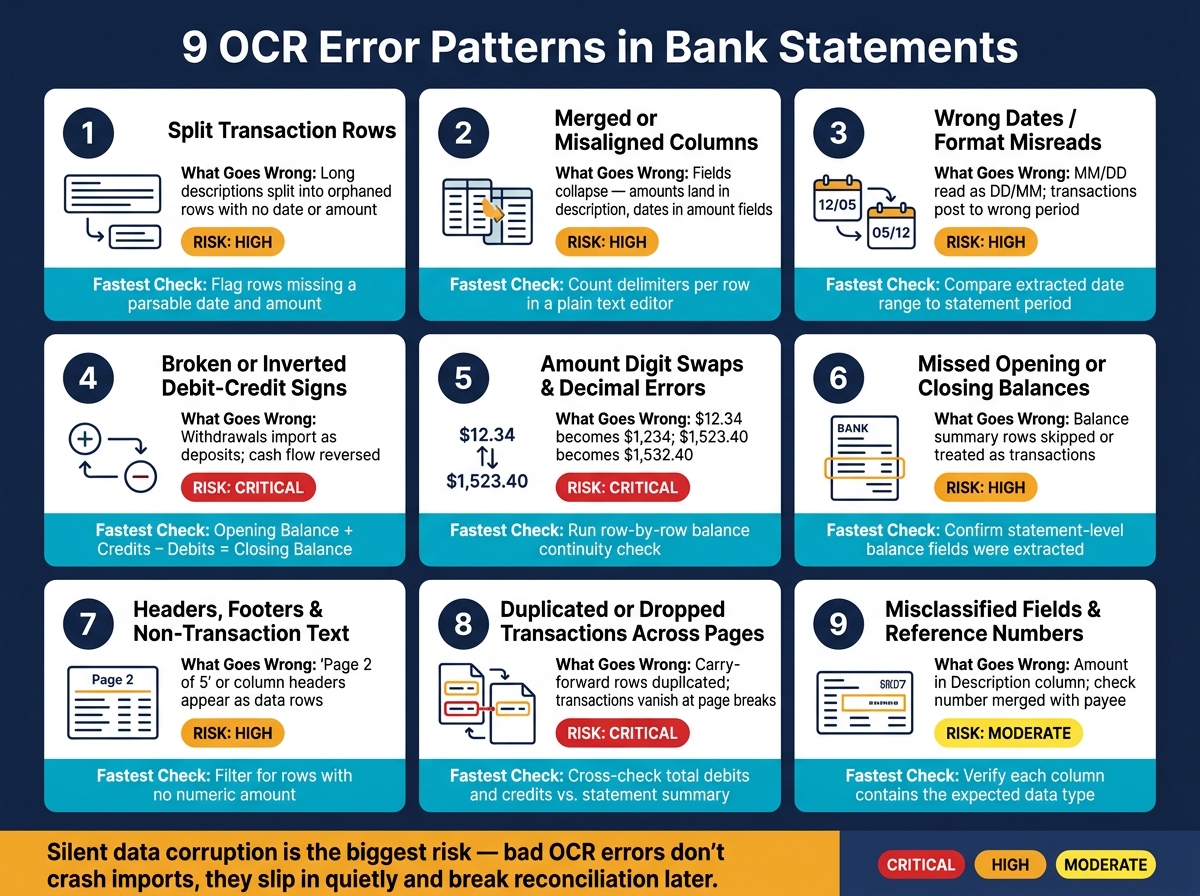
9 OCR Error Patterns in Bank Statements: Risks & Detection Checks
| Error pattern | What goes wrong | Main risk |
|---|---|---|
| Split rows | One transaction turns into two lines | Missing or orphaned transactions |
| Merged columns | Fields slide into the wrong column | Wrong meaning, wrong import mapping |
| Wrong dates | 03/04/2026 gets read the wrong way |
Wrong posting period |
| Broken signs | Debit becomes credit | Cash flow reversal |
| Amount errors | Digit or decimal changes | Totals no longer match |
| Missed balances | Opening or closing balance is skipped | No clean tie-out |
| Header/footer noise | Page text becomes data | Junk rows and import errors |
| Duplicates/drops across pages | Rows repeat or vanish | Balance mismatch |
| Misclassified fields | Reference or amount lands in description | Bad audit trail and row cleanup |
The main point: formatting is not enough. I’d treat balance, date, sign, and row checks as the last filter before import, because those are the places where OCR mistakes do the most damage.
sbb-itb-2afa642
Why OCR Errors in Bank Statements Are Costly Downstream
The most expensive OCR mistakes are the quiet ones.
They don't crash the import. They don't throw a warning. They slide into the ledger looking clean, while changing what the transaction means. A missing minus sign, a date flipped into the wrong format, or one shifted digit can all import without a hitch. That's the danger: silent data corruption.
In Excel, CSV, QBO, and OFX exports, the damage often shows up later. You see wrong totals, wrong dates, or files that no longer balance. And by that point, the problem is harder to trace back to the source.
That extra work adds up fast. Manual bank reconciliation costs bookkeepers about $71 per client per month in labor alone [1]. When OCR errors push accountants to check each line against the source PDF, that cost climbs fast. At that point, reconciliation stops being a simple import-and-review task and turns into manual cleanup, row by row. This friction is the primary bottleneck in an efficient bookkeeping automation workflow.
Most of the error patterns below fall into this silent-corruption bucket. That's what makes them so risky. And in many cases, the first sign of trouble is broken row structure.
1. Split Transaction Rows and Multi-Line Breaks
OCR symptom
When a long merchant name spills onto a second line, OCR reads the page line by line, not row by row. That means the second line can get treated like a new transaction instead of part of the one above it.
At a page break, things can get even messier. OCR may read the carried-over text as a header, a footer, or a separate record and leave it out. Once that happens, the exported file no longer matches the original statement, and reconciliation starts taking more time than it should.
Excel/CSV/QBO/OFX impact
In Excel and CSV, split rows often show up as description-only lines with blank date and amount cells.
In QBO, those broken rows can lead to column-count problems or date errors.
In OFX, the file may still import, but transaction totals can be off, which throws reconciliation off too.
Reconciliation risk
The tricky part is that the import can look fine at first glance, but the ending balance will still be wrong. If the gap between the expected and actual closing balance matches one transaction amount, there's a good chance an orphaned row got dropped during conversion [6].
Detection check
Before you import anything, check that every row has:
- a date that can be parsed
- at least one amount
If a line is missing either one, treat it as a continuation of the row above. After that, confirm that opening balance + transactions = closing balance.
If those numbers don't match, start by checking the top and bottom of each page in the source PDF. That's usually where orphaned rows like to hide [6][4].
When rows stay intact but fields slide into the wrong columns, the next problem is merged or misaligned columns.
2. Merged or Misaligned Columns
OCR symptom
If split rows damage structure, merged columns damage meaning. Even small spacing issues between columns can cause OCR to blend nearby fields or break a single row into the wrong cells.
Most bank statement PDFs store text by position, not as actual tables. So when column spacing shifts - even by a few pixels - the OCR engine can misread where one field ends and the next begins. The usual result is field concatenation: a date and description end up in the same cell, or a dollar amount slips into the description or balance column.
On multi-column statement layouts, OCR can also read straight across the page and combine separate transactions into one row.
Excel/CSV/QBO/OFX impact
In Excel and CSV exports, merged columns ruin sorting and clean field separation. In QBO, a misplaced Debit or Credit can turn a withdrawal into a deposit. OFX exports may still import, but the balances no longer reconcile.
Reconciliation risk
This issue is risky because the numbers can still look normal at first glance. You may not notice anything is wrong until reconciliation fails.
Here’s a useful diagnostic: if your reconciliation gap is exactly twice the value of one transaction, there’s a good chance a debit and credit were switched. Divide the gap by two, then search your export for that amount.
Detection check
Before importing, do a basic arithmetic check: Beginning Balance + Total Credits − Total Debits = Ending Balance. If that math doesn’t work, a column shift is a likely cause.
Then scan for common warning signs:
- A row with a description but no amount
- A row with an amount but no date
- A row where both Debit and Credit are filled in, even though most bank formats don’t allow that
For large files, manually check the five biggest transactions. Those are the ones most likely to throw off your final reconciliation if an amount landed in the wrong column.
If the balance still doesn’t work, the next likely issue is a date field misread. This is especially common when using scanned bank statement OCR on low-resolution files.
3. Wrong Dates and U.S. Date Format Misreads
OCR symptom
Wrong dates usually show up in a few familiar ways: month/day swaps, bad characters, or dates that land in the wrong posting period.
One common issue is character confusion. OCR can read "0" as "O", or "1" as "I" or "l". So a date like 01/15/2026 can turn into OI/15/2O26, which means the date no longer parses cleanly [1][11].
The other problem is format ambiguity. When a date falls within the first 12 days of a month, neither OCR nor the parser downstream can tell whether 03/04/2026 means March 4 or April 3. And the worst part? No warning shows up [1][10].
Reconciliation risk
The most expensive date mistakes are the quiet ones.
A transaction dated January 5 can import as May 1, pass the format check, and still end up in the wrong month. If that shift crosses month-end, your closing balance stops matching the books [1][10].
Excel/CSV/QBO/OFX impact
Date errors don’t stay isolated. They ripple through the whole import flow:
- Excel/CSV: date sorting and transaction order break [9][11]
- QBO: malformed dates or locale mismatches can reject or mispost [1][10]
- OFX: accepted imports can still land in the wrong posting period [7]
QBO may reject malformed dates or import them using the wrong locale. For dates from the 1st through the 12th, the mistake can slip through with no alert at all [10].
Detection check
Three quick checks catch most date issues before import:
- Scan for day values above 12 - a sudden pattern of odd-looking dates often points to a month/day swap [10].
- Sequence check - transactions should appear in date order. If that order breaks, you may be looking at a misread year or swapped month and day digits [11].
- Statement-range check - make sure the earliest and latest transaction dates fall inside the statement’s official start and end dates. Anything outside that window needs a closer look [4][12].
If you're normalizing dates before import, convert everything to ISO format (YYYY-MM-DD). That removes regional ambiguity and helps keep Excel and QBO imports in sync [10][2].
If the dates parse cleanly, the next risk is a valid amount with the wrong debit-credit sign.
4. Broken or Inverted Debit-Credit Signs
OCR Symptom
Sign errors are easy to miss, and they can flip cash flow on its head. The number itself may be right, but the transaction direction is wrong.
Bank statements can show withdrawals with a minus sign, in parentheses like (1,234.56), or with CR/DR suffixes. OCR may miss the minus sign, skip the parentheses, or remove the suffix and leave a plain positive amount behind [3]. So you end up with the right amount and the wrong meaning.
Excel/CSV/QBO/OFX Impact
In Excel and CSV files, one flipped sign can throw off SUM formulas, pivot tables, and running balance checks. Small symbol, big mess.
In QuickBooks Online, the import format also matters. A three-column import uses one signed Amount column. A four-column import uses separate Credit and Debit columns, and both should contain positive values only [3]. If OCR drops the sign or sends the amount to the wrong column, a withdrawal can come in as a deposit or fail template validation [10].
Reconciliation Risk
One flipped sign can double the reconciliation gap. And if every debit gets reversed, the mismatch snowballs fast.
Detection Check
A few simple checks catch most sign problems before they hit your accounting system:
- Running balance check: debits should lower the balance, and credits should increase it [4].
- Arithmetic check:
Starting Balance + Credits − Debits = Ending Balance[5]. - Divide-by-2 check: if the gap matches twice a transaction amount, that transaction probably has the wrong sign [6].
Before you import anything, normalize amounts into one signed column: negative for money out, positive for money in. Also look for parenthetical amounts and CR/DR suffixes, then convert them into standard negatives like -500.00 [3].
If the sign is right but the amount still looks off, the next problem is usually digit swaps or decimal mistakes.
5. Amount Digit Swaps, Omissions, and Decimal Errors
OCR Symptom
These errors are sneaky. The number looks normal, fits the transaction, and doesn't seem off until the balance stops matching.
OCR can confuse lookalike characters such as 8/3, 0/O, and 1/I. That means a valid amount can turn into the wrong one without looking obviously broken. A missing decimal point can change a $12.34 transaction into $1,234 [2]. Separator issues can also blow up amounts by 100x. U.S. statements use $1,234.56, but non-U.S. formats may be read the wrong way if separators aren't normalized [2][3]. Scanned statements, low-resolution files, and statements that use non-U.S. number formats face the most risk [2].
Excel/CSV/QBO/OFX Impact
Once one digit is off, the mistake can travel straight from the source PDF into Excel export files.
In Excel and CSV, a comma can split one amount across two columns. That's why it's smart to open the raw CSV in a plain text editor and check that each amount is still intact. In QBO and OFX, extra text in the amount field can cause the row to fail on import or post to the wrong place [1][2][3]. Remove currency symbols and other formatting before import so the amounts column stays plain [1].
Reconciliation Risk
These mistakes often make it through import without any warning. They usually show up later, when the statement no longer balances. One bad digit in a large transaction can throw off the entire month-end reconciliation.
Detection Check
If the difference is a multiple of $10, $100, or $1,000, start with the largest transactions [5]. That's often where the problem shows itself first. For statements with more than 500 transactions, manually spot-check at least 25 random rows against the original PDF [5].
| Reconciliation Diff Pattern | Likely Cause |
|---|---|
| Multiple of $10, $100, or $1,000 | Digit swap (e.g., 8 read as 3) |
| Amount is 100x too large | Missing decimal point or separator confusion |
| Large unexplained discrepancy | Comma in amount split into two CSV columns |
| Import failure from stray text | Metadata (e.g., "pts") merged into amount field |
If no single amount explains the gap, check whether the opening or closing balance was missed.
6. Missed Opening or Closing Balances
Sometimes the mismatch isn't tied to one bad line item. In that case, check the opening and closing balances first. OCR can miss them, or worse, treat them like normal transactions.
OCR Symptom
Opening and closing balances often vanish or get read as transaction rows even when the rest of the statement looks fine.
Two problems show up again and again. First, a balance summary row such as "Beginning Balance | $4,237.18" may get pulled in as a transaction. That means the starting balance gets added to the ledger twice. Second, on scanned statements, poor image quality, shadows, or a tilted page can cause OCR to skip the row or read the digits wrong [8].
Excel/CSV/QBO/OFX Impact
If a balance summary row shows up as a transaction, delete it before import so you don't double-count it [3]. If the balance is missing, the file may still import, but the statement period won't tie out.
In Excel and CSV, a missing Beginning Balance also breaks any "Expected Balance" helper column. Once that starting point is gone, you can't check the row-by-row math of Previous Balance + Credit − Debit = Current Balance [14].
Reconciliation Risk
If the opening or closing balance is wrong, Starting Balance + Credits − Debits = Ending Balance fails right away.
Detection Check
Start with a simple tie-out: Beginning Balance + (Total Credits − Total Debits) = Ending Balance, with a $0.01 tolerance [6].
Then check the exported CSV. Search the description column for words like "Opening", "Closing", "Balance," or "Total." If any of those appear as transaction rows, remove them before import [3]. Also compare the PDF page count to the number of pages OCR processed. That's an easy way to spot missing balance rows on the first or last page [13][1][4].
| Check Type | What to Do | Error It Catches |
|---|---|---|
| Arithmetic tie-out | Beginning Balance + Net Movement = Ending Balance | Missing balance or sign reversal |
| Keyword scan | Search "Balance" or "Total" in the description column | Balance summary rows treated as transactions |
| Page-count check | Compare PDF page count vs. pages processed | Skipped first or last page balance rows |
If the balances look right but extra text is still showing up in the export, the next problem is usually headers, footers, and other non-transaction text.
7. Headers, Footers, and Non-Transaction Text Mixed Into Data
Bank statements include plenty of text that isn't transaction data: column headers, page numbers, legal disclaimers, and even marketing inserts. The problem is that OCR doesn't always tell the difference. So that extra noise can slip into your PDF bank statement to CSV export right next to actual transactions.
OCR Symptom
Even when the transaction rows stay intact, OCR can still pull headers, footers, and disclaimer text into the table. Repeated labels like "Date", "Description", and "Amount" may get read as if they were transaction rows. A page marker such as "Page 2 of 5" can land in the description field. And disclaimer text or promo copy may turn into messy text that looks like a transaction note.
Separator lines and subtotal rows can also be misread as data. That often leads to blank rows or garbled characters [9].
Excel/CSV/QBO/OFX Impact
These noise rows can cause a mess during import. In QuickBooks and OFX imports, if a page number or disclaimer ends up in an amount field, the value becomes invalid and the import can fail [2][4]. In CSV files, unquoted commas inside footer text can split one row into extra columns, which pushes amount data into the wrong field [3].
There's also a quieter problem. A real transaction near a page break can get mistaken for footer noise and dropped from the export without warning [6]. No alert. No pop-up. The row is just gone.
Reconciliation Risk
Every noise row pads your transaction count and throws off the running balance. If a transaction near a page break gets dropped, activity is understated, and you may not catch it until reconciliation [6].
Once header and footer noise is cleaned out, the next thing to watch is transactions getting duplicated, dropped, or merged across pages.
Detection Check
The fastest check is a keyword filter. Search the description column for terms like "Page", "Date", "Continued", "Total", or "Balance." Any row that matches those terms is probably noise, not a transaction [2][6].
After that, check for rows with no usable date or no numeric amount. Those are strong signs that header or footer text leaked into the data [4].
| Detection Check | What It Catches | How to Do It |
|---|---|---|
| Keyword filter | Leaked headers, footers, page numbers | Search "Page", "Date", "Total" in description column |
| Missing date/amount check | Footer text, marketing inserts, separators | Filter for blank or non-numeric date/amount cells |
| Page-boundary check | Header/footer leakage | Compare the first and last rows on each page |
| Chronological sort | Out-of-sequence noise rows | Sort by date; text-only rows surface immediately |
Spot-check the first and last rows at each page break. That's where header and footer leakage usually shows up.
8. Duplicated, Dropped, or Merged Transactions Across Pages
Once you filter out headers and footers, page breaks become the next trouble spot. Multi-page statements often break OCR flow right at those page boundaries. Most OCR tools read each page on its own and then join everything together. If that join goes sideways, you end up with duplicate rows or missing ones.
OCR Symptom
This usually shows up at the top or bottom of a page. A transaction at the bottom of one page may appear again at the top of the next page as a carry-forward line, so OCR reads it twice. The opposite can happen too: a transaction near the break gets lost when the pages are stitched together. And if a description wraps across lines, OCR may split it into one transaction row plus another row that contains only description text and no amount.
Excel/CSV/QBO/OFX Impact
Duplicate rows can create double entries in your ledger. Dropped rows leave holes in the transaction list. In Excel or CSV exports, description-only rows can bump up the row count and leave you with extra cleanup. In plain terms, duplicate rows are often a sign that page stitching failed.
Reconciliation Risk
A missing row usually creates a difference equal to the amount of that one transaction. A duplicated row creates an offset that matches the repeated amount.
Detection Check
Start with a simple arithmetic tie-out: Opening Balance + Total Credits − Total Debits = Closing Balance. If that math doesn’t tie out, there’s a good chance you have a missing transaction or an extra one.
Then look for back-to-back rows with the same date, description, and amount. That pattern often points to carry-forward duplication. It also helps to compare your extracted row count with the transaction count shown on the statement, if the statement includes one.
| Check | What It Catches | How to Do It |
|---|---|---|
| Arithmetic tie-out | Missing or extra transactions | Opening Balance + Net Activity = Closing Balance |
| Duplicate scan | Carry-forward double entries | Flag back-to-back rows with the same date, description, and amount |
| Row count match | Skipped pages or dropped rows | Compare extracted rows to the statement's transaction count |
| Page boundary spot-check | Dropped or split rows | Manually compare the first and last rows of each page to the PDF |
If the row count looks fine but the fields still seem off, the next problem is usually misclassified fields and reference numbers.
9. Misclassified Fields, Descriptions, and Reference Numbers
Sometimes the row count looks fine, but the data inside those rows lands in the wrong places. That’s a different OCR problem altogether. The row stays intact, yet the field labels are off, so data that was read correctly gets dropped into the wrong column.
OCR Symptom
This issue doesn’t split rows the way page-break errors do. Instead, OCR keeps the transaction together but mislabels part of it. An amount might end up in the Description field, or a reference number might slide into the wrong column.
On check-register-style statements, OCR can also combine the check number and description into one string, like 1001 OFFICE SUPPLIES, with no separator at all [2].
Long descriptions make the problem worse. If a payee name or memo wraps onto a second line, OCR may treat that second line as a whole new transaction, even though it has no date or amount. That leaves you with an orphaned description row [2][4].
Excel/CSV/QBO/OFX Impact
The fallout depends on the export format.
- In CSV, unquoted commas can shift columns.
- In QBO and OFX, misplaced descriptions or reference numbers can lead to import errors or posting into the wrong field.
- In Excel, orphaned rows bump up the row count and can throw off formulas that rely on a steady data range.
Reconciliation Risk
When a reference number gets detached from its parent transaction, part of the audit trail goes with it. That matters during reconciliation. Matching a payment to a check number or UTR is often how you confirm that the transaction is the right one.
A misclassified field may not break the total balance. But it can make one-by-one transaction matching shaky, and that’s where problems start to pile up.
Detection Check
Open the exported CSV in a plain text editor like Notepad++ or VS Code, not Excel, and count the delimiters on each row. Every valid row should contain the same number of commas [3].
Also flag any row that has text but no parsable date or amount. That’s your orphaned description line, and it needs to be merged back into the row above it [4].
Once the fields are off, following accurate bank statement conversion workflows becomes the next checkpoint.
| Misclassification Type | What You See | How to Catch It |
|---|---|---|
| Wrong field assignment | Amount value in the Description column | Check that every Amount field contains only numeric or currency patterns [2] |
| Merged check # and description | 1001 OFFICE SUPPLIES in Description |
Look for leading numeric strings in the Description column [2] |
| Orphaned description row | Row with text but no date or amount | Flag rows missing both a parsable date and an amount [4] |
| Metadata merged into description | Tags like DES: or ID: stuck in the payee name |
Search for known bank-specific tags using regex [1] |
How Each Error Pattern Affects Excel, CSV, QBO, OFX, and Reconciliation
Now that the error patterns are defined, it helps to look at them the way an import workflow does. Not every OCR mistake causes the same kind of trouble. Some stop the file cold. Others slip in quietly and wreck reconciliation later. The matrix below pulls those failure points into one import-focused view. For firms managing high volumes, using a bank statement converter for accountants can automate these checks.
| Error Pattern | OCR Symptom | Excel Impact | CSV/QBO/OFX Impact | Reconciliation Risk | Fastest Check |
|---|---|---|---|---|---|
| Split transaction rows | Description wraps to a new row without a date or amount | Orphaned rows; broken sorting | Column mismatch; import fails | High - dropped transactions | Flag rows missing a parsable date and amount [4] |
| Merged or misaligned columns | Two columns collapse into one cell | Amounts land in description fields; dates in amount fields | Import rejected; column count mismatch | High - missing or misplaced values | Count delimiters per row in a text editor [3] |
| Wrong dates / U.S. date format misreads | MM/DD dates read as DD/MM | Transactions sort into the wrong months | Transactions posted to the wrong period | High - tax cutoff and reporting errors | Compare extracted date range to the statement period [1][4] |
| Broken or inverted debit-credit signs | Withdrawals read as positive values | All amounts appear positive | Withdrawals import as deposits | Critical - a sign error often imports cleanly and reverses cash flow | Verify Opening Balance + Total Credits − Total Debits = Closing Balance [4] |
| Amount digit swaps, omissions, and decimal errors | "8" read as "3"; decimal separator flipped | Incorrect cell values; totals don't add up | Silent data corruption; wrong totals | Critical - balance will never match | Run a row-by-row balance continuity check [4] |
| Missed opening or closing balances | Summary rows ignored or misparsed | No starting or ending anchor for reconciliation | No reliable tie-out | High - data integrity can't be verified | Confirm that statement-level fields were extracted [4] |
| Headers, footers, and non-transaction text mixed into data | "Page 1 of 4" or column headers appear as data rows | Junk rows break filters and row counts | Invalid data errors on import | High - phantom transactions and balance mismatch | Filter for rows with no numeric amount [3] |
| Duplicated or dropped transactions across pages | Carry-forward balances read as new transactions | Row count doesn't match the statement | Ending balance shifts by the missing or duplicated amount | Critical - audit failure | Cross-check total debits and credits against the statement summary [7] |
| Misclassified fields, descriptions, and reference numbers | Amount appears in the Description column; check number merges with payee | Hard to search or filter by reference | Incorrect field mapping in QBO/OFX; import errors | Moderate - audit trail gaps | Check that each column contains the expected data type [4] |
Use these risk flags as a quick pre-import screen. A simple check up front can save you from a messy cleanup after the file lands in Excel, QuickBooks, or your reconciliation flow.
What to Check Before Importing OCR-Converted Bank Data
Use this last review before import to catch the kinds of errors OCR files often sneak in.
- Balance: Opening Balance + Sum of Credits − Sum of Debits = Closing Balance. If the difference is more than $0.01, stop and inspect the file.
- Signs: Withdrawals should be negative, and deposits should be positive. If the gap matches twice one transaction amount, that often points to a sign flip.
- Dates: Open the raw file in a plain text editor and confirm every date uses MM/DD/YYYY format and falls within the statement period.
- Large transactions and page breaks: Spot-check the biggest transactions and any rows that appear around page breaks.
- Zero-dollar rows: Flag any row with a $0.00 amount. In many cases, that points to a parsing error, not a real zero-dollar transaction.
For teams that want these checks built into the workflow, ClearlyLedger automates balance verification, multi-line stitching, and low-confidence row flags before export.
Conclusion
These nine errors usually show up in the same places: row breaks, column edges, dates, signs, balances, and page transitions. And that's the problem. A file can look clean, import into Excel, CSV, QBO, or OFX without a hitch, and still contain a withdrawal with the sign flipped or a transaction that vanished at a page break.
Before you import anything, check the basics against the source statement:
- Dates
- Amounts
- Signs
- Balances
- Row counts
That final check is the last filter before bad data lands in your books. Verification matters more than formatting. Reconciliation-aware conversion checks whether opening balance + credits − debits = closing balance within $0.01 before export. Format-only tools just reshape the file. They don't verify it.
ClearlyLedger applies running balance verification and row-confidence checks before export.
FAQs
Which OCR errors are hardest to catch before reconciliation?
The OCR mistakes that cause the most trouble before reconciliation are the ones that look fine at first glance but are still wrong.
Sign reversals are one of the biggest risks. Accounting software may import them with no warning, which can flip a withdrawal into a deposit, or the other way around. That kind of error can sit there quietly until numbers stop matching later.
Other silent problems include missing rows at page breaks and digit mix-ups, like reading O as zero. Those errors often slip through unnoticed until the final balance check fails.
How can I quickly validate bank statement data before import?
Start with a balance reconciliation. Confirm that the opening balance, plus every transaction, matches the closing balance. If it doesn’t, divide the difference by two. That small trick can help you spot a common sign-flip mistake fast.
Next, check that the transaction count matches the original statement. Then do a quick visual scan for transposed digits, wrong date formats, and broken line items before import.
Why do OCR errors often happen at page breaks?
OCR errors often show up at page breaks. The reason is pretty simple: many tools handle each page on its own, then try to stitch everything back together afterward.
That’s where things can go sideways.
If a transaction description spills onto the next page, or a row lands at the very top or bottom, the parser may read it as a header or footer instead of transaction data.
When that happens, rows can get dropped, duplicated, or misread. And that’s how you end up with phantom transactions and messy reconciliation problems. OCR also has a hard time keeping rows and running balances intact across multiple pages.
Loading interactive converter… Try ClearlyLedger free